Flowchart Symbols Explained: A Beginner’s Guide for Engineering Students
Learn what every flowchart symbol means and when to use it, with an Arduino example, common mistakes, and how different industries use flowcharts.
If you’re starting engineering, you’re going to see flowcharts a lot. In mechanical engineering we use them to map out simple processes, and even more when we’re planning MATLAB code or an Arduino project. They show up early, too. Most first-semester engineering courses expect you to draw one before you write a single line of code.
The problem is that nobody really stops to explain the shapes. I got confused on this myself. When do you use the input/output shape instead of a regular box? Where does a decision go, and how many arrows should come out of it? A lot of students guess, and the flowchart ends up looking right but meaning something different.
This guide covers what each flowchart symbol means, when to use it, and a full worked example you can copy for an Arduino project. You’ll also see how other industries use the same symbols, the mistakes beginners make most, and the best way to actually learn them.
What is a flowchart, and why do the shapes matter?
A flowchart is a diagram that shows the steps of a process in order, using shapes connected by arrows. It’s a way to organize a complicated process into something you can understand at a glance.
The shapes are what make that work. Each one has a set meaning, so you can tell an input from a process from a decision without reading extra labels. Someone who has never seen your project can follow the chart because they already know what a diamond means.
Those meanings aren’t made up by whoever drew the chart. They come from a standard, ISO 5807, which defines flowchart symbols for data, program and system flowcharts. It was first published in 1985 and ISO still lists it as current. You don’t need to memorize the standard, but it’s why a flowchart from your MATLAB class looks the same as one from a software company.
The 5 basic flowchart symbols and their meanings
These five shapes cover almost every flowchart you’ll draw in a first-year class. Learn these first and the rest come easily.
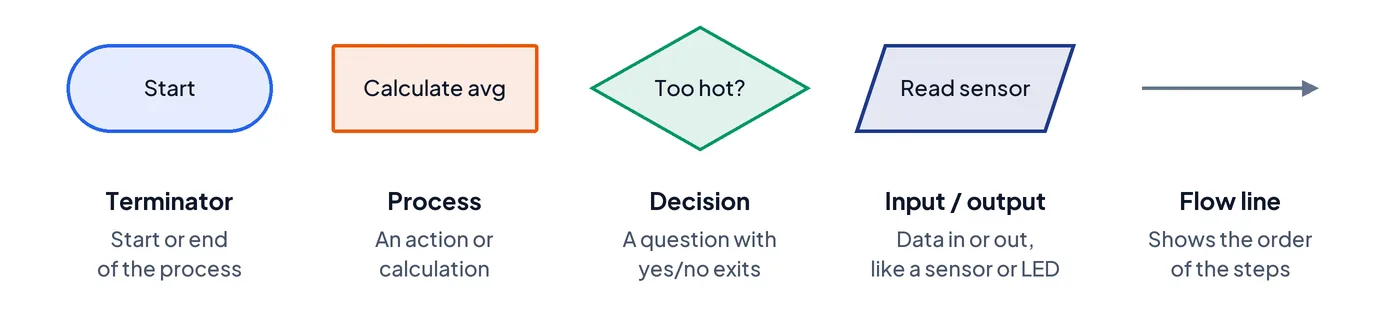
- Terminator (oval or rounded rectangle). Marks where the process starts and ends. Every flowchart should have one Start, and at least one End. Write just “Start” or “End” inside it.
- Process (rectangle). Any action or calculation. “Calculate average”, “Add 1 to counter” or “Wait 1 second” all go in a rectangle. If something is being done, it’s probably a process.
- Decision (diamond). A question with more than one possible answer, usually yes or no. “Is the temperature above 30°C?” Each answer gets its own arrow out of the diamond, and every arrow needs a label.
- Input/output (parallelogram). Data coming into the process or going out of it. Reading a sensor, typing a value, printing to the screen and turning on an LED are all input/output. This is the one most people mix up with the process rectangle.
- Flow line (arrow). Connects the shapes and shows the order. Arrows usually run top to bottom or left to right. When a line has to loop back up, the arrowhead tells the reader which way to go.
Other flowchart symbols you’ll run into
Once your charts get bigger, a few more shapes show up. You won’t need all of them for a class assignment, but you should recognize them when you see them.
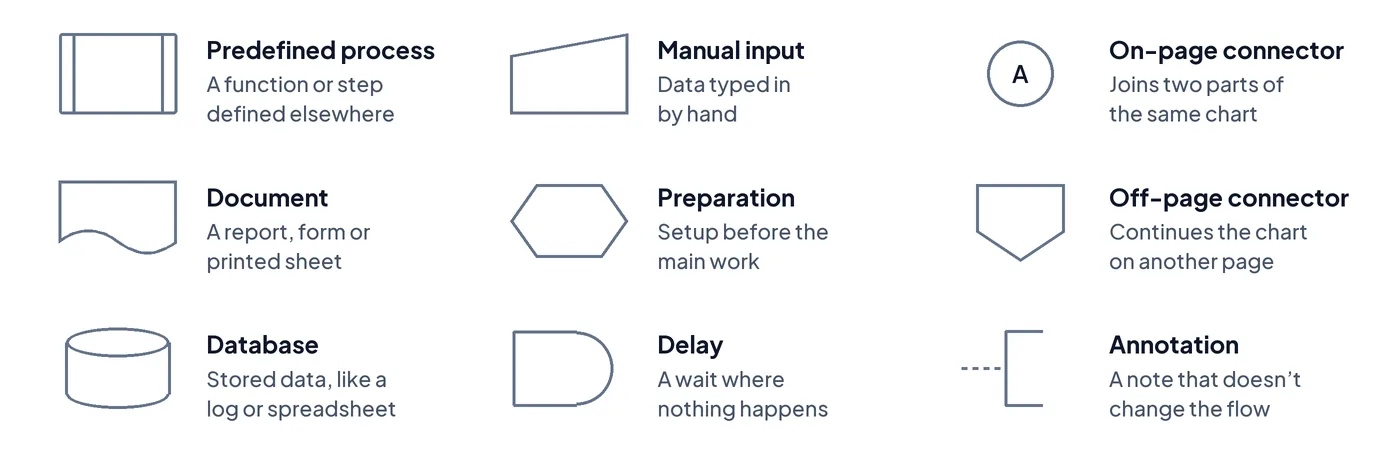
- Predefined process (rectangle with double sides). A step that’s explained somewhere else, like a function or subroutine. In MATLAB, calling your own function is a good place for this.
- Document (rectangle with a wavy bottom). A printed or written document, like a report, a form or a lab sheet.
- Database or stored data (cylinder). Information saved somewhere so it can be used later, like a spreadsheet of test results or a log file.
- Manual input (rectangle with a slanted top). Data a person types in by hand, such as entering a value at the keyboard.
- Preparation (hexagon). A setup step that gets things ready before the main work, like setting a loop counter to zero or setting up pins.
- Delay (half-oval, shaped like a D). A wait where nothing happens, like a timer or waiting on a shipment.
- On-page connector (small circle). Joins two parts of the same chart without drawing a long, messy arrow across it. Put matching letters in both circles.
- Off-page connector (pentagon, shaped like home plate). Continues the chart on another page.
- Annotation (open bracket). A note that explains a step without changing the flow.
Worked example: an Arduino flowchart
Here’s a classic first Arduino project: a fan that turns on when it gets too hot. The board reads a temperature sensor, checks whether it’s over 30°C, and switches the fan on or off. Then it waits a second and does it all again.
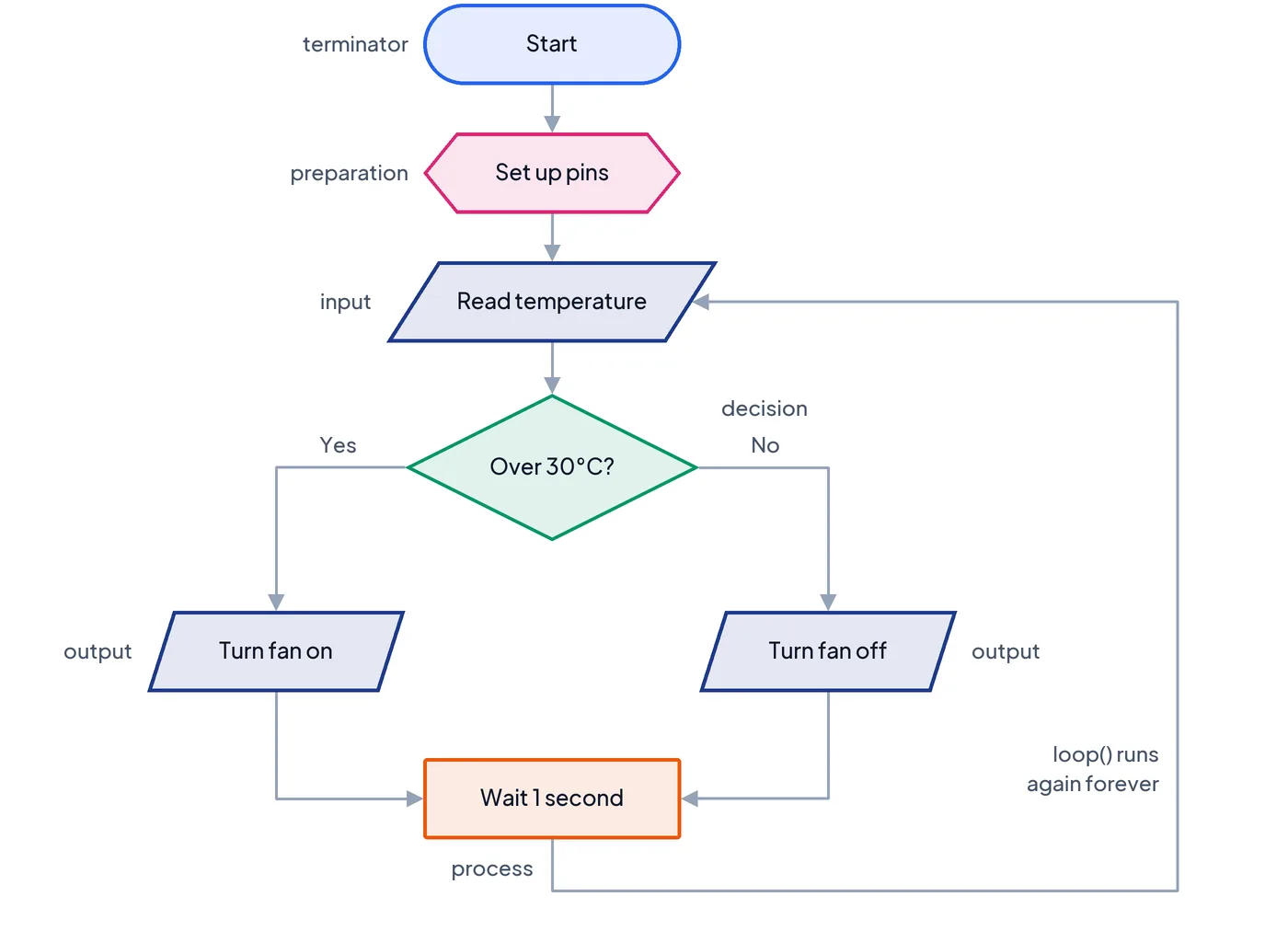
Here’s how each step maps to a symbol:
- Start (terminator). Where the program begins when the board powers on.
- Set up pins (preparation). This is your setup() function. It runs once and gets the sensor and fan pins ready.
- Read temperature (input). Data comes in from outside, so it’s a parallelogram, not a rectangle.
- Over 30°C? (decision). One question, two labeled exits: Yes and No.
- Turn fan on / off (output). Both send a signal out to the fan, so they’re parallelograms too.
- Wait 1 second (process). Nothing crosses the edge of the system here, so it’s a plain rectangle.
- Loop back. Arduino’s loop() runs forever, so there’s no End symbol. The arrow goes back up to the reading step instead.
The same pattern works for MATLAB. The diamond becomes an if/else statement, and the loop back becomes a while loop.
How different industries use flowcharts
Flowcharts aren’t only for engineering students. Almost every industry uses them, because any job with steps and decisions can be drawn as one. The symbols stay the same. What changes is what goes inside them.
- Software and programming. Developers sketch the logic of a program before coding it: loops, if/else branches, error handling. This is the same thing you’re doing for MATLAB or Arduino in class.
- Mechanical engineering and manufacturing. Assembly steps, quality checks and testing procedures. A decision diamond might be “Does the part pass inspection?”, with the No path looping back to rework.
- Healthcare. Hospitals use flowcharts for patient intake, triage and treatment steps, where a missed decision can be serious.
- Business and operations. Hiring, onboarding, ordering and customer support. A flowchart makes it obvious who does what, and where a process gets stuck.
- Marketing. Mapping a customer’s path from first seeing an ad to buying, or planning an email sequence where the next message depends on whether someone clicked.
- Content creation. Planning a video or blog from idea to script to filming to editing to posting, with review steps along the way.
This is also why learning the symbols properly pays off. A flowchart you draw in first semester uses the same shapes you’ll use at an internship or a job.
Common flowchart mistakes beginners make
- Using rectangles for everything. It’s the easiest shape to draw, so it ends up everywhere. But a rectangle that’s secretly a decision or an input makes the chart harder to read, and in a graded assignment it’ll cost you points.
- Mixing up input/output and process. Reading a sensor is input. Turning on an LED is output. Calculating something from the sensor reading is a process. Use the quick test from earlier: does the step cross the edge of your system?
- Decisions with one arrow, or unlabeled arrows. A diamond asks a question, so it needs at least two ways out. Label each one (Yes/No, True/False, Pass/Fail), or the reader has to guess which path is which.
- No clear start or end. Every chart needs a Start. Programs that run forever, like an Arduino loop(), may not have an End, but the loop back should be drawn clearly.
- Too much text in one shape. If a box needs three sentences, it’s probably two or three steps. Keep each shape to a short phrase.
- Arrows that cross all over the place. If your lines look like spaghetti, rearrange the shapes or use on-page connectors.
How to draw a flowchart: start by hand, then move to software
My advice for students is to draw your first flowcharts by hand. Pencil and paper (or a whiteboard) forces you to choose each shape yourself. You can’t just drag a box out of a menu, so you think about whether a step is really a process or an input. That builds a much stronger memory of the symbols than clicking does.
A simple way to do it:
- Write the steps as a plain list first. Don’t worry about shapes yet.
- Mark each step. Is it a start/end, a process, an input/output or a decision?
- Draw the shapes top to bottom and connect them with arrows.
- Label every decision arrow.
- Trace it with a finger. Walk through each path, including the No paths, and make sure every one reaches an end or loops back on purpose.
Once the symbols feel natural, move to software. Tools like Lucidchart, draw.io and Flowboard make it easy to fix mistakes, share charts with a team and keep them neat. They also have every symbol ready to go, which only helps once you already know what each one means.
Doing it in Flowboard
We built Flowboard for planning projects step by step, and flowchart symbols are part of it. You can sketch the logic for a class assignment and keep the rest of the project on the same canvas.
- Flowchart symbols and swimlanes, with Yes and No labels added to decisions automatically, so you can map a program or a process the same way you would on paper (flowcharts and swimlanes).
- Sub-boards for a big step, like a function you want to chart on its own (sub-boards).
- Gates that hold a step until what it depends on is done (gates).
- Built for engineering work, from class projects to team builds (Flowboard for engineers).
If you want to try it on your next assignment, there’s a free 7-day trial.
Frequently asked questions
What are the 4 basic flowchart symbols?
The four basic flowchart symbols are the oval (terminator), the rectangle (process), the diamond (decision) and the parallelogram (input/output). Arrows connect them to show the order of steps. Together, these shapes are enough to draw most simple flowcharts, including the ones you’ll make in a first-semester engineering or programming class.
What is the difference between input/output and process in a flowchart?
Input/output (a parallelogram) is for data entering or leaving your system, like reading a sensor or printing a result. A process (a rectangle) is an action that happens inside the system, like a calculation or setting a variable. If the step crosses the edge of your system, use the parallelogram.
How many arrows come out of a decision symbol?
A decision symbol needs at least two arrows coming out of it, one for each possible answer. Most decisions are yes/no questions, so they have exactly two. Label every arrow so readers know which path matches which answer. A diamond with only one exit isn’t really a decision.
Are flowchart symbols standardized?
Yes, flowchart symbols are standardized by ISO 5807, an international standard first published in 1985 and still listed as current. ANSI published an earlier American version. You don’t need to read the standard, but sticking to its common shapes means anyone can read your flowchart without a legend.
What is the best way to learn flowchart symbols?
The best way to learn flowchart symbols is to draw flowcharts by hand first. Choosing each shape yourself builds a stronger memory than dragging boxes out of a menu. Once the symbols feel natural, switch to software like Lucidchart, draw.io or Flowboard to keep your charts neat and easy to share.